Nothing interrupts a welcoming atmosphere faster than shouting a sixteen-character router password across a noisy room—followed by watching a guest squint at their phone screen asking, "Wait, was that a capital I or a lowercase L? And was there a dollar sign at the end?" Whether you run a busy neighborhood coffee shop, host travelers in an Airbnb suite, or simply welcome friends into your home study, sharing WiFi manually wastes everyone's patience.
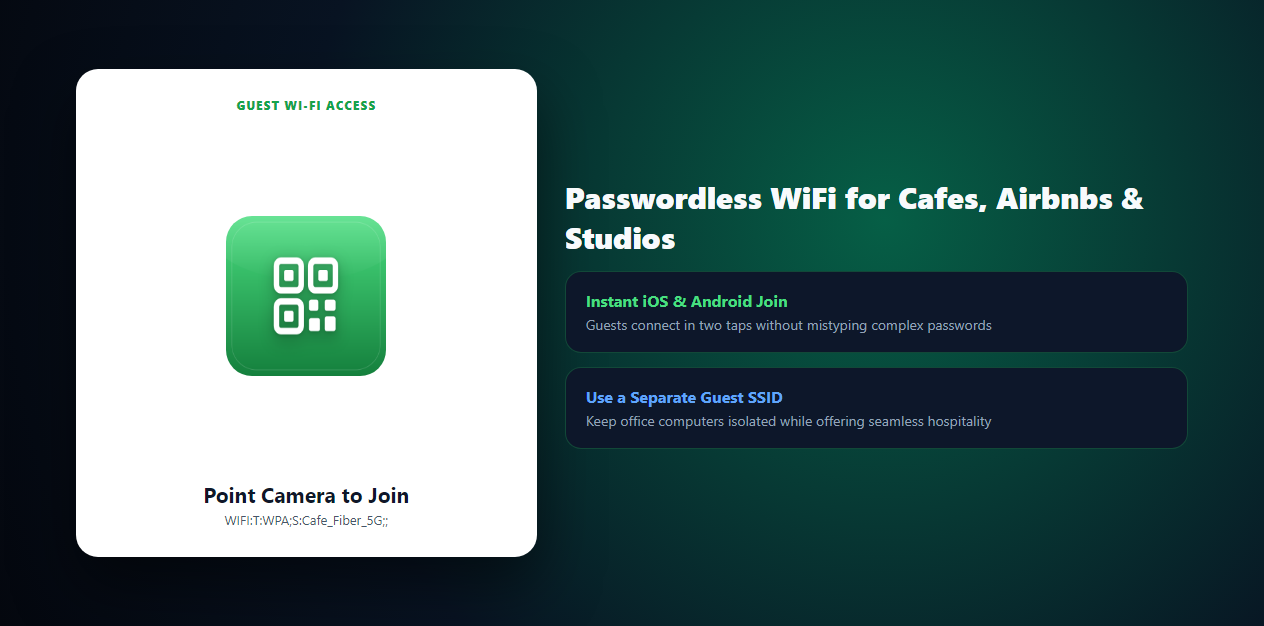
Thankfully, both iPhone (iOS 11+) and virtually all modern Android cameras natively recognize a standardized WiFi QR payload format (WIFI:T:WPA;S:NetworkName;P:Password;;). One quick camera scan prompts the visitor's phone with a simple button: Join Network. Setting one up properly takes sixty seconds inside our QR Code Generator—and adding two quick security precautions keeps your private computers safe at the same time.
Step-by-Step: Creating Your Static WiFi QR Card
Because our generator builds static QR images right inside your browser, your printed WiFi sign never expires and never sends your router password through third-party tracking servers:
- Open the QR Code Generator and click the WiFi Network tab.
- Type your exact Network Name (SSID), paying careful attention to uppercase/lowercase letters and spaces (for example,
Cafe_Guest_5G). Even one stray space prevents phones from connecting. - Enter your WiFi password carefully.
- Keep encryption set to WPA / WPA2 / WPA3 (nearly all home and office routers built since 2006 use WPA2/WPA3). Only pick WEP for ancient hardware or "No Password" for open portals.
- Only check the Hidden WiFi Network box if your router actively hides its SSID broadcast from public scan lists.
- Download high-resolution PNG (or crisp vector SVG for acrylic counter standees) and test scanning it once with a friend's phone before printing!
Security Best Practices Before Printing for Public Spaces
Giving visitors instant convenience should never mean giving strangers access to your office printer, smart home hub, or work laptop sharing folders. Follow three simple router habits:
1. Enable Your Router's Separate "Guest WiFi" Network
Nearly every modern TP-Link, ASUS, Netgear, MikroTik, or ISP fiber router includes a toggle called Guest Network inside its admin panel. Turn it on! Give your guest network its own separate name (Studio_Guests) and password, and check the option labeled "Client Isolation" or "Allow guests to see each other: OFF". Put that guest network inside your printed QR code—never your private home/office SSID.
2. Use Strong Random Passwords Without Fear
Previously, café owners set weak passwords like coffee1234 purely so staff could spell them out easily over the counter. With a QR code doing the typing automatically, you can finally use a strong 16-character passphrase (M9#vK2!pR8qT4$zL) so random passersby sitting down the block cannot guess your WiFi password easily.
3. Rotate Airbnb Passwords Between Long-Term Stays
If you host short-term apartment rentals, consider refreshing your guest WiFi password seasonally and reprinting a fresh tabletop card in 60 seconds—preventing former guests parked outside months later from auto-reconnecting.
Troubleshooting Common Connection Glitches
Once in a while, a guest scans the sign and sees an error. Nine times out of ten, one of three culprits explains it:
- Router Password Changed After Printing: Static QR codes store the exact string encoded the day you printed them. Whenever you change your WiFi password on the router, generate and print an updated card immediately.
- Special Symbols in Old Android Scanners: Characters like
;,:, or"inside SSIDs or passwords must be escaped properly inside WiFi QR strings. Our generator handles escaping automatically, though sticking to letters, digits, hyphens, and basic symbols guarantees maximum compatibility across older phones. - Dual-Band 2.4 GHz vs. 5 GHz Confusion: If your café has thick brick walls where 5 GHz drops near outdoor patio tables, encode your steady 2.4 GHz guest network on patio stickers—or enable Smart Connect single-SSID band steering on the router.
Pairing WiFi Cards With Menus or WhatsApp Support
Smart hospitality businesses place two small QR cards side-by-side on tables: one for instant WiFi connection and a second built with our WhatsApp Link Generator or main QR tool for digital menus and instant room-service requests. Guests feel cared for within ten seconds of sitting down, and front-desk staff stop spelling WiFi passwords twenty times a shift.
Designing Physical Cards Guests Actually Notice & Trust
Even the sharpest QR code fails if nobody feels comfortable scanning it or if flimsy paper gets ruined by coffee spills within three days. Give your physical tabletop card a clean, trustworthy finish:
- Include Your Venue Logo or Name Clearly: Guests feel hesitant scanning anonymous mystery stickers taped onto tables (due to rare "QR tampering" scams). Print your café or Airbnb name prominently above the code and laminate or enclose it inside a clear acrylic holder so staff immediately spot tampering.
- Add a Friendly Human Fallback Line: Below the square, include simple wording like "Network: Cafe_Guest_5G • Ask our barista if you need help!" Older phones without native QR camera support appreciate knowing the exact network name.
- Use High Error Correction (Q or H) in Busy Venues: Kitchen steam, fingerprints, and slight scratches happen. Generating your WiFi QR code with Quartile (25%) or High (30%) error correction inside our tool allows cameras to decode it reliably even if a corner gets lightly scuffed.
Real Setup Example for Home Offices & Co-Working Studios
Freelance studios and small design offices host clients, delivery couriers, and workshop attendees weekly. Rather than interrupting client presentations to walk someone over to the router sticker, frame one clean 5×7-inch black-and-white WiFi QR print right beside the conference table or reception desk. Pair it with a dedicated guest VLAN/SSID capped nicely (for instance, reserving 30 Mbps for guests while keeping your main editing computers isolated on wired Ethernet or private 5G). Every visitor connects gracefully in two taps while your work files remain completely untouched.
Frequently Asked Questions
Do guests see my plain-text WiFi password on screen after scanning? Both iOS and Android connect automatically without displaying the passphrase prominently during prompt confirmation—though technically a user can inspect saved network details later in device settings, which is another strong reason to always isolate guests onto a dedicated Guest SSID.
Will this WiFi QR work without internet access on the guest's phone first? Yes! The phone camera decodes the local SSID and password purely offline before joining your router.
What size should I print a counter WiFi QR code? For tabletop menus and reception stands viewed from arm's length, print the QR square at least 1.5 × 1.5 inches (3.8 cm) wide; for lobby wall posters scanned across three feet, scale a vector SVG up to 4 × 4 inches so even older phone cameras lock focus instantaneously in dim mood lighting.
Small hospitality touches leave lasting impressions. Spending two minutes printing a crisp, static WiFi QR sign saves staff endless interruptions and lets guests settle in smoothly from the moment they arrive.