
Launch a new small business website, Shopify storefront, or digital catalog, and image formatting headaches start almost right away. A designer emails your brand logo inside a bulky .png file; your supplier sends product photographs in .webp format that refuses to open inside your accounting invoice template; and your mobile product pages load sluggishly because every gallery slide weighs over two megabytes.
Small business owners do not need to memorize technical codec specs. All you need is a clear decision rule for when to use Transparent PNG, when to deploy WebP, and when classic JPG still wins—along with a fast batch converter like our JPG to PNG / WebP Converter ready whenever a file arrives in the wrong wrapper.
Understanding Alpha Transparency (Why Logos Hate JPG)
Have you ever placed a company logo onto a sleek dark website header or colored promotional flyer, only to watch an ugly solid white rectangle box appear around the logo? That happens whenever a logo gets saved as a JPG. The JPEG format literally has no layer for "see-through" pixels—every pixel inside a JPEG canvas must be painted a solid color (usually white).
PNG and WebP both support an alpha transparency channel. That means pixels outside your circular emblem or cutout product stay 100% invisible, letting your logo float cleanly over dark navbars, emerald banners, or textured packaging mockups without boxy borders.
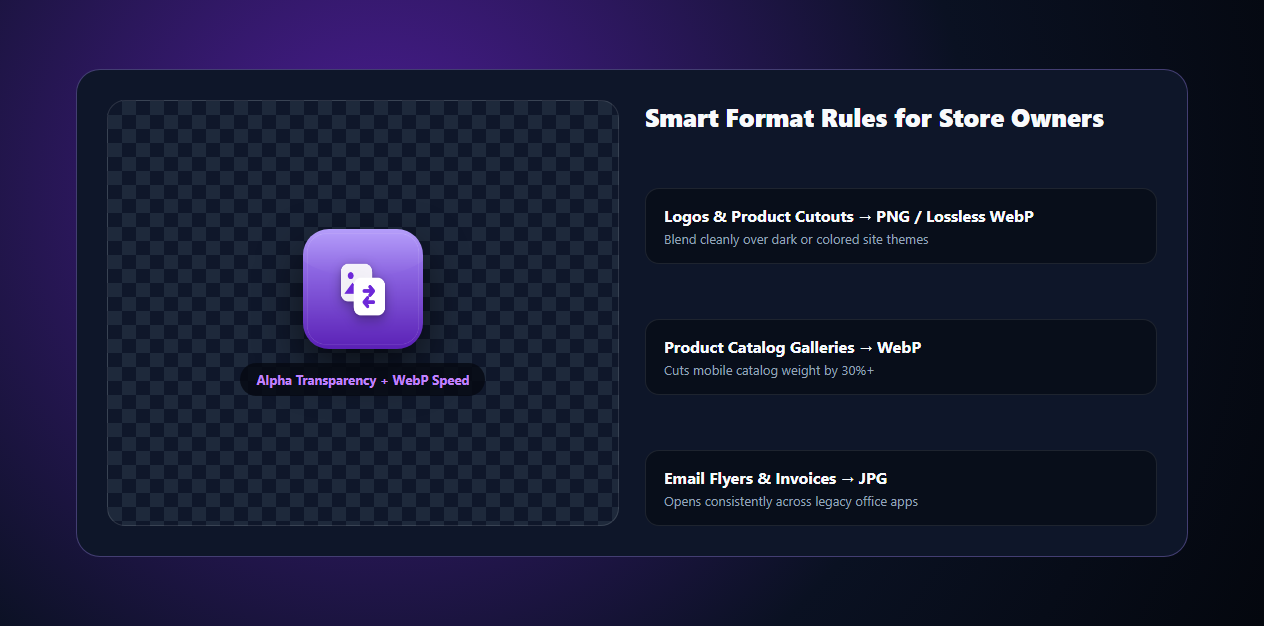
Business Asset Playbook: Which Format Goes Where?
1. Brand Logos, Stamps & Icons → PNG (or Lossless WebP)
Keep your primary master logo in clean transparent PNG so printers, email signatures, PowerPoint decks, and Canva templates handle it cleanly anywhere. Keep in mind that if you ever convert a transparent PNG to JPG inside a converter, empty transparent areas intentionally turn solid white so dark graphics remain readable.
2. Online Store Product Galleries & Blog Banners → WebP
If your WooCommerce, Shopify, or custom HTML storefront loads twenty product photos per category page, converting gallery photos from .jpg or .png to WebP at 85%–90% quality cuts total download weight dramatically—often shaving 30% to 50% off mobile bandwidth without losing fabric texture or stitching sharpness. Faster product grids translate straight into fewer abandoned mobile shopping carts.
3. Invoices, Printable Flyers & Supplier Portals → JPG
Older Microsoft Word templates, legacy ERP billing tools, and marketplace seller uploads occasionally balk when fed .webp files downloaded from modern browsers. Whenever a supplier catalog or wholesale portal gives you .webp photos you cannot drop into your invoicing software, batch-select all of them inside our Converter, pick JPG (or PNG for cutouts), and click Download All Converted.
Shrinking Heavy Storefront Photos Without Blurry Labels
Product packaging labels, skincare ingredient lists, and shoe size tags contain small typography that blurs terribly if compressed blindly. Rather than sacrificing clarity across your whole store, pair format conversion with targeted compression in our Image Compressor:
- Test 100 KB High Quality first for detailed product shots containing printed text or fine fabric weave.
- Use 50 KB for compact category thumbnails, team portraits, and customer review avatars.
- Always preview compressed labels alongside the original side-by-side before replacing files on your live website.
Common Traps When Switching Between Formats
Watch out for two subtle mistakes business owners make when converting batches of graphics:
- Converting a Blurry JPG Into PNG Does Not Restore Quality: Saving an already pixelated 20 KB JPG as a PNG simply traps the blur inside a massive 400 KB lossless container. Always convert downward or sideways from your cleanest high-resolution master file.
- Uploading Huge Uncropped Transparent PNG Screenshots: Taking a full-screen 2560×1440 screenshot of an invoice or software dashboard and leaving it as PNG creates a 2 MB monster. Converting screenshots that contain photographs to WebP drops them under 150 KB immediately.
Batch Converting Product Folders Without Installing Software
Imagine a supplier just emailed you a ZIP folder containing 25 product photos in .webp format, and your accounting tool or marketplace seller portal refuses to accept WebP uploads. Opening twenty-five files one by one inside a desktop photo editor would ruin half an hour.
Instead, open our JPG to PNG / WebP Converter, drag all 25 WebP images into the dropzone simultaneously, pick JPG (Universal Compatibility) at 90% quality (or PNG if your items have transparent backgrounds), click Convert Images, and tap Download All Converted. Within seconds, every single item downloads cleanly inside your browser—with zero upload wait times and complete supplier privacy.
How Dark-Mode Websites Change Logo & Icon Preparation
More modern websites, client dashboards, and mobile apps now support Dark Mode alongside Light Mode. If your business logo consists of dark charcoal typography on a transparent PNG background, test how it looks when placed over a dark #060A13 header! Dark black text disappears completely against midnight backgrounds.
Small businesses solve this gracefully in two ways: either include a crisp subtle bright border or pill container behind dark emblems, or export dedicated bright-accent app icons and wordmarks (just like the crisp emerald gear logo and rounded-square icons used across AllToolsPlace) so branding stays sharp on every background theme.
Frequently Asked Questions
Do all browsers and phones open WebP images now? Yes. Chrome, Safari (iOS 14+ & macOS Big Sur+), Firefox, Edge, Android Chrome, and Samsung Internet all support WebP natively. Only older Windows desktop photo viewers or legacy Word/PDF templates occasionally prefer JPG or PNG.
Does converting PNG to JPG keep my background transparent? No—JPEG cannot store transparency. Any see-through pixels are cleanly filled with crisp solid white #FFFFFF so dark icons never show ugly black halos.
What format should I use for printed flyers or vinyl banners? Stick to high-resolution lossless PNG (or vector SVG where supported, such as our QR Code Generator) rather than low-quality compressed JPEGs.
Does batch converting images in AllToolsPlace compress or watermark them? Never. Zero watermarks are added, and you control exact quality (from 15% up to 100%) using the quality slider before clicking Convert.
Quick Storefront Asset Checklist
Before launching a new product line or seasonal landing page, run a two-minute visual audit: check that your header logo uses transparent PNG or lossless WebP so it floats cleanly across both light and dark modes; batch-convert large gallery slides to WebP at ~88% quality; keep downloadable catalog flyers in crisp JPG under 150 KB; and verify every product thumbnail loads smoothly on mobile 4G data. Consistent format hygiene keeps pages snappy, cuts hosting bandwidth costs, and makes every storefront look dependable across phones and laptops. Saving a single standard checklist for your design team prevents future bloated uploads automatically.
Organizing clean visual assets across your website, invoices, and WhatsApp catalogs takes minutes when you match each graphic to the right format. Keep PNG for crisp transparent logos, WebP for lightning-fast websites, and JPG for universal legacy compatibility. Pair those smart format habits with consistent under-100KB target compression so every customer visiting on mobile enjoys fast, crisp product displays without waiting on bloated image downloads.