
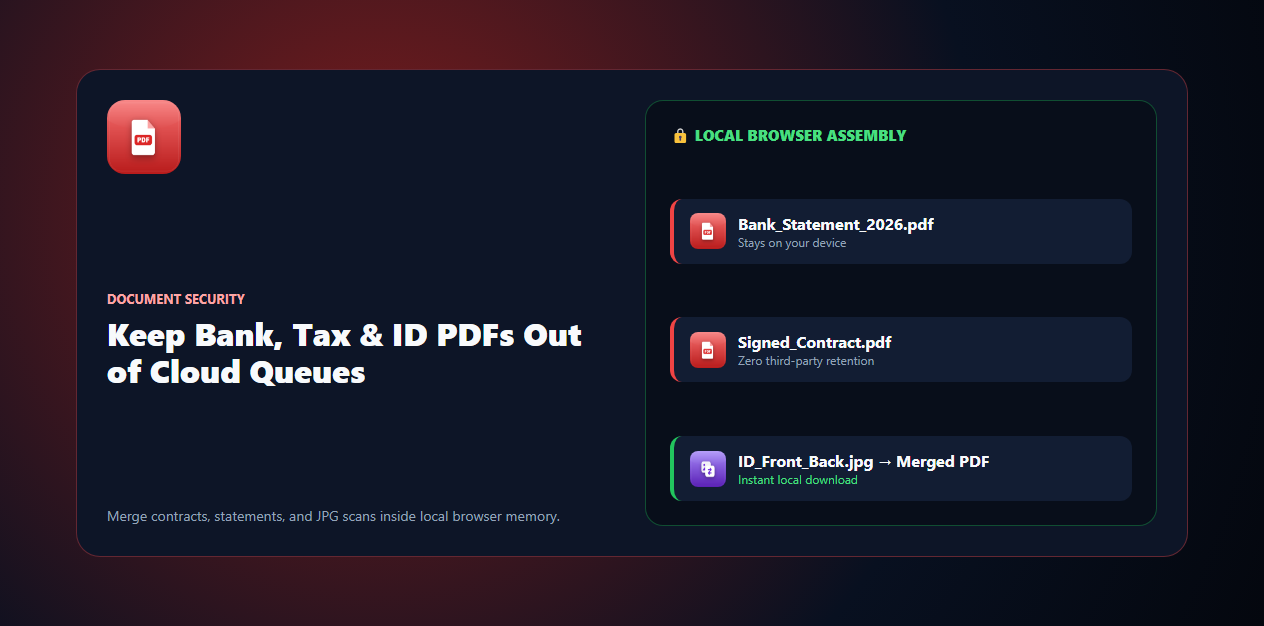
Think for a moment about the PDFs sitting inside your laptop's Downloads folder right now. You probably have a bank statement for a rental lease or visa sponsorship, an employment contract with salary figures, scanned tax filings, medical lab reports, or front-and-back copies of a passport and national ID card. Combining two or three of those pages before emailing HR or uploading to an embassy portal takes ten seconds—unless you accidentally hand all of them over to an untrusted remote server.
When people search "merge PDF free online," they rarely inspect the privacy policy or architecture of the website they click. Yet traditional server-side PDF combiners copy every page of your private paperwork over the internet onto someone else's computer first. Learning how to merge PDFs and image scans locally inside your own browser protects sensitive records without sacrificing a single second of convenience.
The Hidden Footprint of Cloud-Uploaded PDFs
Suppose you upload a 12-page bank statement and a signed client NDA to a random ad-supported merger website. Even if the banner promises "Files deleted within 1 hour," consider what happens operationally on poorly maintained servers:
- Temporary Disk Caches & Snapshots: Automated hosting backups frequently snapshot server temp folders every night—meaning copies of "deleted" user uploads can sit quietly inside cloud archives for weeks.
- Third-Party Analytics & Error Loggers: Aggressive debugging scripts on cheap free utilities occasionally capture file metadata, filenames (like
Ali_Raza_Salary_Slip_Nov2026.pdf), or request headers. - Unnecessary Mobile Data Consumption: Merging a 10 MB scan plus a 4 MB PDF via cloud upload forces your phone to upload 14 MB upstream and download 14 MB back downstream—burning 28 MB of mobile bandwidth and lagging painfully on train or coffee-shop WiFi.
How Browser-Side PDF Assembly Solves Everything
Our PDF Merger / JPG to PDF works on a completely different foundation. Powered locally by pdf-lib inside standard JavaScript, the website downloads the lightweight assembly engine to your browser tab once, and from that moment forward every single PDF operation runs strictly inside your own laptop or phone memory.
When you drop Contract.pdf, ID_Front.jpg, and Receipt.png into the workspace, zero bytes travel over your internet connection. Your device reads the pages, converts any images cleanly to standardized A4 or Letter dimensions, combines the page trees locally, and writes alltoolsplace-merged.pdf directly to your local disk.
Best Practices for Organizing Sensitive Multi-File Packets
Security goes hand in hand with clean document hygiene. Follow these habits whenever preparing legal, financial, or immigration bundles:
1. Handle Password-Locked Bank Statements Properly
Many banks email monthly statements encrypted with a default password (often your birth year or account digits). Automated merge scripts cannot legally bypass strong PDF encryption without your unlock key. If a downloaded bank PDF refuses to load into any local merger:
- Open the locked PDF normally inside Google Chrome, Microsoft Edge, or macOS Preview and enter your personal password once.
- Press Print → Save as PDF locally on your own computer. That creates a clean unlocked copy strictly on your hard drive without touching any third-party "PDF unlocker" website!
- Drop that unlocked local copy cleanly into our PDF Merger alongside your other paperwork.
2. Standardize Page Sizes Before Combining Images & Typed PDFs
Nothing looks sloppier to a loan officer or university reviewer than opening a merged PDF where Page 1 (your typed cover letter) renders neatly at A4 width, Page 2 (a smartphone scan of your ID) explodes to 4,000px wide requiring awkward zoom-outs, and Page 3 shrinks tiny. Choosing Standard A4 Portrait inside our PDF Merger automatically scales embedded JPG and PNG images neatly inside uniform A4 margins so every page scrolls smoothly at identical zoom.
3. Keep Backup Masters Separate From Submission Packets
Never delete individual original documents after building a merged PDF. Keep a clean folder containing separate originals (01-Resume.pdf, 02-Transcript.pdf, 03-ID.jpg) alongside your combined submission file. Next month, when a different application asks for your resume and degree *without* your bank statement, you won't have to hunt for a PDF splitter.
Closing Private Tabs on Shared Computers
Working from a university computer lab, cyber cafe, or coworker's laptop? Because local browser merging creates an object URL inside that specific tab's session memory, always close the browser tab completely and remember to delete your downloaded merged PDF from the shared computer's Downloads folder (and Empty Recycle Bin) right after emailing or uploading your application.
Mixing Landscape Certificates & Vertical Typed Pages Cleanly
A frequent layout headache happens when you merge a portrait typed cover letter (vertical A4) alongside a landscape diploma or wide horizontal bank table scan. If an image merger stretches a wide landscape certificate onto a narrow vertical slice without keeping proportions intact, stamps and signatures look distorted.
Inside our PDF Merger / JPG to PDF, choosing Standard A4 Portrait automatically centers each image proportionally with balanced clean borders—never stretching faces or text! Meanwhile, if every photo in your batch is strictly horizontal and meant for slide presentations, switching the Image Page Size option to Fit Page to Original Image Size keeps natural landscape dimensions intact edge-to-edge.
Real-World Scenario: Assembling a Rental Lease & Visa Sponsorship File
Suppose a landlord or consular officer asks for one combined PDF containing: (1) your signed lease page, (2) three months of PDF bank statements, (3) a JPG scan of your national ID front and back, and (4) your employment verification letter. Rather than emailing four separate files—or risking uploading salary numbers and bank balances onto an unfamiliar cloud converter—drop all five files into the merger queue together.
Use the Up/Down buttons to place your verification letter first, lease second, ID pages third, and statements last. Click Merge & Download PDF, open the resulting file locally to verify page order from start to finish, and rename it professionally before uploading. Total network exposure during assembly: zero bytes!
Frequently Asked Questions
Does browser-side merging reduce text sharpness inside my existing PDFs? No! Existing PDF pages are copied natively at vector level via pdf-lib, keeping typed fonts, digital signatures, and hyperlinks 100% sharp without rasterizing them into blurry pictures.
How many PDFs or images can I combine at once? There are no artificial 2-file or 5-page free limits. You can merge 10, 20, or 30+ files smoothly as long as your phone or laptop has normal free RAM.
Why is PDF merging better than zipping five files together? Many HR managers, visa officers, and smartphone users dislike extracting .zip archives before reading documents. Merging everything directly into one clean multi-page PDF opens instantly inside every email previewer, WhatsApp chat, and tablet viewer on the very first tap.
Can I combine portrait scans taken on Android and iPhone with downloaded Windows PDFs? Yes! Mixing phone images and standard PDF files inside one unified browser queue works seamlessly across every operating system.
Treating private PDFs carefully does not require expensive desktop Acrobat licenses or risky online cloud drops. With clean client-side browser merging and smart unlocked-copy habits, your sensitive records remain strictly yours from start to finish.