
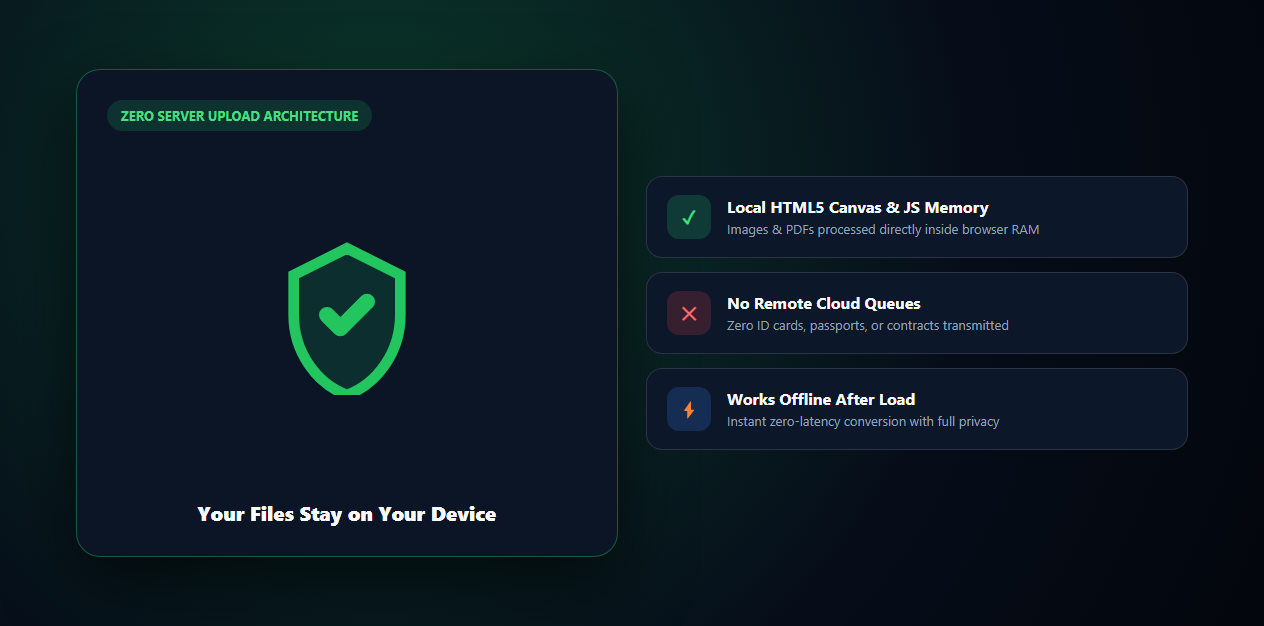
Most people hesitate before handing an unlocked phone or USB stick containing bank statements, passport scans, or family photographs to a stranger. Yet every single day, millions of internet users happily drop those exact sensitive documents into the first free PDF merger or image resizer that pops up in search results—rarely pausing to ask where that file actually travels after clicking Upload.
Understanding what happens behind the scenes on a utility website does not require a computer science degree. Almost every online tool falls into one of two architectures: server-side cloud processing or client-side browser execution. Knowing how to tell them apart—and why client-side tools have quietly become the gold standard for privacy—protects both your personal identity and your business documents.
What Happens When You Use Traditional Server-Side Tools?
For the first twenty years of the web, browsers could barely handle complex math on their own. If a website wanted to merge two PDF files or compress a five-megabyte photograph, it had no choice except to transfer your file across the internet onto a rented remote server. Once uploaded, a backend script processed the document, stored the finished file temporarily on a hard drive, and emailed or served you a download link.
On reputable enterprise services with strict encryption and audited deletion policies, server processing works safely enough. On random ad-heavy free tool sites, however, several uncomfortable risks appear:
- Unclear Retention Windows: Many sites promise files are deleted "shortly after conversion," without explaining whether automated backups, server logs, or cached CDN URLs retain copies for days or weeks.
- Publicly Guessable Download Links: Poorly configured converter sites occasionally generate sequential download URLs. Anyone scanning predictable link strings could stumble across files converted by other users minutes earlier.
- Slow Upload Bottlenecks on Mobile Data: Sending a 15 MB PDF packet over congested cellular data just to remove one page or reorder transcripts wastes both megabytes and precious time.
How Client-Side Browser Tools Work Differently
Modern browsers like Chrome, Safari, Edge, and Firefox are essentially lightweight operating systems sitting on top of your laptop or smartphone hardware. Thanks to standardized APIs such as HTML5 Canvas, the FileReader API, and pure-JavaScript document engines like pdf-lib, your own device can perform heavy pixel manipulation and PDF assembly natively inside browser RAM.
When you open our Image Compressor or PDF Merger / JPG to PDF on AllToolsPlace, your browser simply reads the local file directly off your hard drive or phone gallery, computes the compression or page merge right inside your device's processor, and hands the finished output straight back to your Downloads folder.
Zero bytes of your photograph, national ID card, tax receipt, or client proposal ever touch an external server or cross a network cable.
Three Everyday Scenarios Where Client-Side Privacy Matters Most
While compressing a generic landscape photo for a travel blog carries almost no privacy risk, everyday life constantly throws sensitive files across your desk:
1. Passport Photos & Government IDs
Visa portals, banking KYC forms, and scholarship applications routinely ask for crisp 35×45mm portraits alongside front-and-back scans of national ID cards or passports. Once an identity document leaks onto an unsecure third-party server, you cannot easily "change" your passport number or date of birth. Framing portraits in our Passport Size Photo Maker keeps every biometric pixel strictly inside your own device memory.
2. Freelance Contracts, NDAs & Unreleased Designs
Freelancers, accountants, and legal assistants regularly merge signed non-disclosure agreements, payroll sheets, and client product mockups. Sending confidential client PDFs through unknown online converters can directly violate client confidentiality clauses—even if you meant well. Local browser assembly eliminates that exposure completely.
3. Unpublished Drafts & Academic Research
Students polishing graduate statements of purpose and writers checking SEO articles rarely want unpublished drafts stored or logged on unknown text-checking servers. Using a local analyzer like our Word & Character Counter checks reading speed, keyword density, and word targets with zero network logging.
Additional Privacy Perks: Stripping Hidden EXIF Metadata
Even when sharing casual photos on forums, classified marketplaces, or social groups, most smartphone users forget about EXIF metadata. Every photo snapped on an iPhone or Android phone quietly embeds an invisible data header containing your exact phone model, lens settings, timestamp, and—if location permissions are active—precise GPS latitude and longitude coordinates of your home or workplace.
When you pass a photo through an HTML5 Canvas tool such as our JPG to PNG / WebP Converter or Image Compressor, Canvas draws pure visual pixel data onto a fresh digital canvas and exports a clean image without carrying over hidden camera GPS headers. Not only does stripping EXIF shave several unnecessary kilobytes off your file, it also prevents strangers from reading where a photograph was captured.
How to Spot Unsafe Utility Sites Immediately
As you browse the web, watch out for three warning signs that suggest a site values ad clicks or data collection over user safety:
- Forced Wait Timers Before Downloads: Client-side processing finishes almost instantly. Artificial 15-second countdowns usually exist solely to inflate ad impressions or push misleading download popups.
- Confusing Multiple "Download Now" Banners: Legitimate utilities display one unmistakable action button clearly attached to your converted file preview.
- Mandatory Email Registration to Download One File: Never hand over your primary email address just to unlock a 40 KB JPEG or a two-page PDF you already uploaded.
Real-World Privacy Checklist for Students, Freelancers & Families
Even when you rely on trustworthy browser tools, good digital hygiene keeps sensitive files doubly safe across shared devices and mobile phones:
- Use Private/Incognito Windows on Shared PCs: When scanning or merging tax documents at an office kiosk, library desk, or print shop computer, open a private browser window first. Closing that window clears local tab memory and browser history immediately.
- Clear Your Downloads Folder After Sending: Browser tools save processed outputs straight to your device's Downloads folder. On shared computers, move finished files onto your encrypted drive and empty the Recycle Bin before logging off.
- Check Browser Network Activity Anytime: Curious tech-savvy users can even press
F12→ Network tab inside Chrome or Edge before dropping a file into AllToolsPlace. Watch the log stay completely blank during compression or PDF merging—proof right before your eyes that zero bytes leave your computer.
Frequently Asked Questions About Client-Side Processing
Does client-side processing slow down older budget phones? For normal document sizes—such as compressing photos up to 15 MB or merging 20-page PDFs—any smartphone manufactured in the past seven years completes the task in one to two seconds. Only massive 200 MB scan archives require desktop RAM.
Are static QR codes safe to generate locally? Yes! Unlike tracking QR services that route customers through external redirect domains, static QR generators encode your link or WiFi password directly inside the image pattern with zero tracking.
Closing Thoughts
Speed and privacy do not have to fight each other. By keeping processing inside modern browsers instead of shipping files across the internet, tools become faster, work reliably even on spotty mobile data, and keep sensitive paperwork exactly where it belongs—under your control. Bookmarking a transparent, client-side utility hub ensures your everyday image, PDF, QR, and writing workflows stay effortless and secure year-round.